Updated: 2026-09-28

Victor Bobrov Written by: Victor Bobrov

MDB Repair Tool & Online Service

How to repair MDB file

MDB Repair Kit is designed to restore the content of corrupted Microsoft Access database. Microsoft Access MDB repair tool helps to repair *.MDB files.

The repairing corrupted MDB file of Access database - step-by-step instruction:

  1. Download MDB Repair Kit here: https://www.mdb.repair/down/MDBRepairKitInstall.exe
  2. Install MDB Repair Kit
  3. Start MDB Repair Kit
  4. Select corrupted *.mdb or *.accdb file
  5. Preview repaired tables (structure and data), queries and relations and press Next
  6. Select name and folder for new MDB database with recovered data
  7. Select the recover mode and press Recover
MDB Repair

How to repair corrupted MDB file online

To recover a corrupted .MDB file containing with damaged Microsoft Access database, you can use an online service and get the recovered Access database in just a couple of clicks:

  1. Go to https://www.mdb.repair/
  2. Select the corrupted MDB file
  3. Wait for the upload and recovery of Access database to complete
  4. Preview the recovered database for free
  5. Pay $10 to a Access Recovery
  6. Download the recovered .mdb file
4.9 (21)
Rating
(19)
(1)
(1)
(0)
(0)

How to Repair an MDB File

A corrupted Microsoft Access database may stop opening, display error messages, or show only part of the stored information. To repair an MDB file safely, first create a backup copy of the damaged database and perform all recovery attempts on the copy. This protects the original file from additional changes and gives you another recovery opportunity if the first method does not work.

MDB Repair Kit is a specialized Microsoft Access database recovery tool designed to extract information from damaged .mdb and .accdb files. The software helps users recover database content locally without sending confidential files to an outside data recovery provider. It can be used by beginners who need to repair one damaged database and by IT professionals who regularly handle Access file corruption.
How to repair MDB file?
Access MDB file repair

Access MDB File Repair

MDB Repair Kit simplifies Access MDB file repair by guiding the user through the recovery process step by step. To begin, select the damaged .mdb or .accdb file, allow the program to analyze its structure, preview the recoverable objects, and save the restored information to a new database. The original damaged file remains unchanged during the recovery procedure.

Microsoft Access databases can become corrupted after an unexpected shutdown, power failure, hardware problem, virus attack, software error, interrupted file transfer, or storage device failure. MDB Repair Kit analyzes the internal database structure rather than relying on the cause of corruption. This approach allows the software to search for recoverable information even when Microsoft Access can no longer open the file normally.

The recovery engine scans the damaged database for tables, records, queries, relationships, and other recognizable Access objects. When possible, the software also identifies records that were deleted before the corruption occurred. The recovered information can then be reviewed and exported to a new database instead of overwriting the damaged source file.

Microsoft Access ACCDB Repair Tool

MDB Repair Kit supports both traditional .mdb databases and newer .accdb files created by modern versions of Microsoft Access. The tool can process databases with different structures and file sizes, making it suitable for personal databases, business applications, accounting systems, customer records, inventory files, and other Access-based projects.

To repair an ACCDB file, select the corrupted database in MDB Repair Kit and start the analysis. After the scan is complete, use the built-in preview to check which tables, records, queries, and links can be recovered. The preview helps determine whether the required information is available before the recovered data is saved.

The software is designed for users who do not have advanced database administration experience. Its wizard-based interface separates the recovery process into clear stages, reducing the risk of selecting incorrect settings. Each step explains what action is required, from choosing the damaged file to saving the recovered database.

How to Repair MDB Files

Before using specialized recovery software, try opening a copy of the database in Microsoft Access and running the built-in Compact and Repair Database command. This free method may resolve minor structural errors. You can also try importing the available tables and queries from the damaged database into a new blank Access database.

If Microsoft Access cannot open the file or the built-in repair function does not restore the required information, use MDB Repair Kit to perform a deeper scan. The tool is intended for situations in which normal Access recovery features fail, the database opens with missing objects, or important tables and records are no longer accessible.

The standard MDB file recovery procedure includes the following steps:

  1. Create a backup copy of the corrupted .mdb or .accdb file.
  2. Install and start MDB Repair Kit on a Windows computer.
  3. Select the damaged Microsoft Access database.
  4. Run the database analysis.
  5. Preview the tables, records, queries, and links found during the scan.
  6. Choose the recoverable objects you need.
  7. Save the recovered information to a new database.
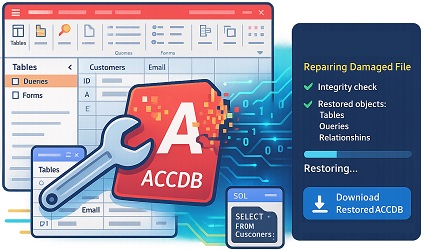
How to Repair MDB Files

Main Benefits of MDB Repair Kit

MDB Repair Kit provides a straightforward recovery process for damaged Microsoft Access databases. Its main features include:

  • Step-by-step recovery of corrupted Access databases
  • Support for both .mdb and .accdb file formats
  • A built-in preview of recoverable database content
  • Recovery of tables, table data, queries, and links
  • Detection of damaged information and previously deleted records when available
  • Support for databases created in Microsoft Access 2003, 2007, 2010, 2013, 2016, 2019, 2021, and Access for Microsoft 365
  • Local database recovery without transferring the file to an external provider
  • Modest system requirements
  • No need to install additional database recovery components
  • A cost-effective alternative to manual data recovery services

The preview function is especially useful when repairing a large Access database. Instead of recovering the entire file without knowing what remains available, users can inspect the detected objects and confirm that the required tables or records have been found.

MDB Repair Online

MDB Repair Online

An online MDB repair service is useful when the damaged database must be recovered from a device on which Windows software cannot be installed. The online recovery option can be accessed through a web browser from Windows, macOS, Linux, tablets, and other supported devices. The user uploads the damaged database, starts the analysis, reviews the recovery results, and downloads the restored data.

For confidential databases or files that should remain on the local computer, MDB Repair Kit for Windows provides an offline alternative. The database is analyzed directly on the user’s computer, which may be preferable for business records, customer information, financial data, or internal company databases.

The online service is generally suitable for a one-time recovery or for users working from a non-Windows device. The desktop version is more practical for administrators and support specialists who need to repair Access databases regularly or process files locally.

Download the MDB Repair Tool

A demo version of MDB Repair Kit is available from the official Repair Kit website. The demo can be used to install the software, scan a corrupted Microsoft Access database, and preview the information that the recovery engine can identify.

Reviewing the recovery preview before purchasing or saving the restored database helps users evaluate the result. If the required tables, records, queries, or links appear in the preview, the full version can be used to complete the recovery and save the extracted information to a new database.

The Access file repair software does not recover:

  • forms;
  • macros;
  • modules;
  • password protected files.

System requirements:

  • Windows 98/Me/2000/XP/Vista/7/8/10/11 or Windows Server 2003/2008/2012/2016 and above
  • Microsoft Access 2003 or higher installed

Download

download Download

from our website

Real customer reviews from TrustPilot

Verification, Professional Credentials, and Database Protection Guidance

File Master publishes and supervises this resource. The page ties MDB Repair product information to the responsible expert, verified organization records, governing legal policies, and customer support materials. These connections let readers and search systems verify the source and ownership of its technical statements.

Authorship and Expert Review

Victor G. Bobrov
Victor G. Bobrov
Chief Software Engineer and Access Database Recovery Specialist

Victor G. Bobrov prepared and reviewed the technical material in this Access database recovery guide. The structured markup additionally identifies him as the developer of MDB Repair Kit.

Verified Business References

The page provides references confirming the organization behind the software and its registered identity:

  • Corporate record for File Master
  • Registered business: File Master LLC
  • Help center: File Master customer support

Protecting Microsoft Access Database Content

  • For confidential databases, choose the locally installed edition of MDB Repair Kit. Processing occurs on the user’s Windows computer, allowing the files to remain on that device.
  • Create a separate working copy before testing, opening, or restoring a corrupted .MDB or .ACCDB file. Store the untouched source database safely.
  • When software installation is unavailable or inconvenient, the Online MDB Repair Service provides a browser-based recovery option across supported devices and operating systems.
  • The license agreement, privacy statement, and support information are kept easy to access, helping users understand processing terms and available assistance.

Customer's reviews and ratings

perfect

Jomagar 11-10-2025

Very good

KAROL 09-03-2025

ok

Archivo 08-04-2025

good

Julienne 06-30-2025

Excellent

Vinicio 05-26-2025

Good Job

Reykun 03-30-2025

awesome

ubu 01-26-2025

good

twa 10-20-2024

Very good

Melisa 08-25-2024

Excellent

Jan 02-25-2022

The program was able to remove unwanted changes are made to the file that caused damage.

SC @PitokRugrat 02-26-2021

After trying to change the table structure using a third-party program, my database became corrupted. Now, when opening a file in Microsoft Access, it throws an error like "an unrecognized database format." Several tables were restored by using this site, but not the entire database. Failed to restore macros and forms.

unwarlikestep 02-28-2020

good

dafi

plus: Italian support
minus: costs $10 per file

Marrioo

good app

ji

okay

hernan

nice

refaei

perfect service

sarah

great!!!

nichole

Excellent service, thank you very much!!!!

Angel Maya

very nice

refaei

Prices

Personal

License


$ 25


Buy now

Business

License


$ 39


Buy now

Site

License


$ 49


Buy now

Repair

Online


$ 10


Online
PayPro Global

PayPro Global (PayPro Global, Inc., 250 The East Mall street, Etobicoke, ON Canada, M9B 0A9) is the fastest growing eCommerce company that develops customized solutions to help software producers to easily and effectively sell software online. PayPro Global supports more than one hundred currencies, all major credit cards, and a wide variety of payment options. PayPro Global offers efficient customer support 24/7 and provides personal attention to customers having special requirements.

Victor G. Bobrov, Senior Software Engineer.

MCSD, MCDBA

A recognized expert in data storage within Microsoft Access ACCDB/MDB files. A hands-on specialist in recovering corrupted Microsoft Access files with over 25 years of experience.

  • 20+ years in corrupted file recovery
  • Desktop and online repair systems
  • MCSD / MCDBA certified

About the expert

  • Studied at the Aviation Institute in aircraft engine CAD/CAM/CAE
  • Part of the team developing an innovative AL-31 engine diagnostic system for technical condition analysis
  • Development, implementation, and support of police station automation systems in 25 US states
  • From 2002 to present, development of programs and cloud services for recovering damaged files

Certifications

Microsoft Certified Solutions Developer - MCSD

Microsoft Certified Database Administrator - MCDBA

  • Microsoft Certified Database Administrator certificate
  • Microsoft Certified Solutions Developer certificate

About File Master LLC

GOLD Partner

File Master LLC is a Microsoft Gold Certified Partner

This certification demonstrates our commitment to technical excellence, deep expertise in Microsoft technologies, and the ability to deliver high-quality solutions for Microsoft Access database recovery and file repair.

Victor G. Bobrov, leading specialist at File Master
✦ Company specialist

Victor G. Bobrov

Victor G. Bobrov works with File Master on file structure analysis, damaged file recovery, database recovery and online repair services.

Contacts

Pacific Business Centre, #101 - 1001 W. Broadway Suite 381.
Vancouver, BC V6H 4E4, CANADA
Email: email

Frequently Asked Questions

01 FAQ #

Question:

How to Recover an Access 2019 MDB File After a Sudden Power Outage?

Answer:

Most likely, the power outage occurred while Access was writing changes to the database pages, updating an index, or saving system information. First, copy the corrupted MDB file to another physical drive and perform all further actions only on the copy. First, create an empty database in Access 2019 and try to import the available tables, queries, and relationships into it via the External Data menu. If the import does not start, run the "Compact and Repair Database" command on the copy.

For a more thorough analysis, install the MDB Repair Kit on Windows, select the corrupted file, review the tables and queries found, and then save the recovered objects to a new MDB database. If you cannot install the program on your work computer, upload a copy of the database via the online service at www.mdb.repair and, after analysis, download the provided recovery results.

02 FAQ #

Question:

What to Do If OneDrive Created a Corrupted Copy of an Access 2021 Database?

Answer:

Access files are not designed for simultaneous editing via a synchronised cloud folder, as OneDrive may only transfer a portion of the changed blocks or create conflicting versions. Do not merge or rename the copies at random: first, save both versions to a separate local folder outside of OneDrive. Next, you can open the OneDrive version history and download a copy of the ACCDB file created before the conflict occurred. If the backup version also fails to open, try importing its objects into a new, empty Access 2021 database.

The MDB Repair Kit allows you to analyse each corrupted copy separately, compare the tables identified during the analysis, and save the most complete dataset to a new MDB file.

From a computer without the appropriate software, you can upload each copy to the online service www.mdb.repair and select the result with the highest number of recovered records.

03 FAQ #

Question:

How to Recover a Multi-User Access 2016 Database from a Network Drive?

Answer:

The network connection may have been lost while a new row was being written, an index was being updated, or the ACCDB service pages were being modified. Immediately prevent other users from opening the original file and save an unmodified copy. Check whether there is a nightly backup or a shadow copy of the file on the server created before the failure. You can then create an empty Access 2016 database and try to import the tables, queries, and relationships from the corrupted copy one by one.

If the standard import fails, analyse the local copy using the MDB Repair Kit and save the recovered data to a new MDB database.

An alternative option is to upload the file via a browser to www.mdb.repair, which is convenient if the administrator cannot install the MDB Repair Kit. After recovery, it is recommended to split the database into a server-side portion containing the tables and local client files to reduce the risk of further corruption.

04 FAQ #

Question:

Is it possible to recover an ACCDB file after a sudden NAS shutdown?

Answer:

The file size may remain the same even if its internal pages or data distribution tables are not fully written. Copy the ACCDB file from the NAS to a local drive and do not run the recovery directly in the network folder. In the NAS control panel, check the file system snapshots, the Recycle Bin, and previous versions of the directory—this is the safest, free way to restore a working copy. If there are no snapshots, try running "Compress and Restore" on a duplicate of the file or importing the available objects into a new database.

The MDB Repair Kit for Windows can scan a local copy, display the detected table structure, records, queries, and relationships, and then save them to a new MDB file.

If you don't have a Windows computer, you can submit the copy for processing via the online service www.mdb.repair. Going forward, it's best to work with the local Access client and store the tables in a system designed for network-based multi-user access.

05 FAQ #

Question:

How to Recover Access 2007 Data from a Faulty Hard Drive?

Answer:

In this situation, the damage may be not only within the MDB file itself but also at the level of the drive's physical sectors. Do not repeatedly run file system repair on the original drive, as intensive writing can worsen its condition. As a first step, you can try copying the file once to a healthy drive or first create a sector-by-sector disk image using backup tools. Compare several of the resulting copies and select the one whose size matches the original value. Then try importing objects from this copy into an empty Access 2007 database.

You should run the MDB Repair Kit on the file located on a healthy drive; after the analysis, you can save the recovered data to a new MDB database.

If the copy is only available on another device, upload it via the online service www.mdb.repair and review the contents of the recovered tables before using the results.

06 FAQ #

Question:

What to Do with an MDB File After CHKDSK Repairs in Windows 10?

Answer:

CHKDSK restores the logical structure of the file system, but it doesn't understand the internal structure of the Access database and may separate corrupted fragments from the main file. First of all, save copies of the current MDB file, the FOUND.000 folder, and all CHK fragments to another drive. You can start by checking previous versions of the folder, Windows backups, and system restore points, if they were set up in advance. Do not manually merge the CHK fragments into the MDB without understanding their location, as this could permanently corrupt the structure.

Run the MDB Repair Kit on the preserved copy of the MDB and check which tables, records, and queries the program recognises. Save the result under a new name in MDB format without overwriting the original file.

For remote processing, you can use www.mdb.repair by uploading the most complete copy of the damaged database via a web browser.

07 FAQ #

Question:

How to Recover an ACCDB File After an Antivirus Alert in Windows 11?

Answer:

The antivirus may have blocked access to the database, interrupted data writing, or quarantined the ACCDB file itself due to a false positive. First, review the protection log and restore the file from quarantine to a separate folder only, without disabling protection for the entire system. You can also compare the recovered copy with a backup version and try opening it on an isolated computer without running any suspicious macros. If the database opens partially, import only the tables and safe queries into a new file.

MDB Repair Kit can extract tables, records, queries, and relationships; however, it is not designed to recover VBA modules, forms, or macros. Save the program's output to a new MDB database and be sure to scan it with antivirus software before further use.

To analyse the file without installing the application, upload a copy of the ACCDB file to www.mdb.repair, but do not submit the file if it contains data that corporate policies prohibit sharing with external services.

08 FAQ #

Question:

Why does Access 2024 consider the database corrupted after an antivirus update?

Answer:

The remaining LACCDB file may indicate that the session was not closed properly, but the lock file itself does not contain the main database. Make sure no one else is working with the ACCDB file, close all Microsoft Access processes, and back up the entire folder. After that, you can delete only the remaining LACCDB file and check whether the database opens; you should not delete or rename the original ACCDB file. If the error persists, temporarily add a separate test folder to your antivirus exclusions and try importing objects from the database copy into a new file.

If the database is internally corrupted, use the MDB Repair Kit: select the ACCDB file on the first page of the MDB Repair Kit, review the preliminary list of tables found, and save the result to a separate MDB database.

The online service www.mdb.repair is suitable for processing via a browser if a local installation is not possible. You should only add the verified working folder to your antivirus exclusions, not the entire drive.

09 FAQ #

Question:

How to restore ACCDB after a Windows 11 update?

Answer:

Windows Update itself usually does not alter the structure of an ACCDB file, but a forced restart may have interrupted an incomplete write operation. Save the one-week-old backup separately and make a copy of the corrupted file. Start by creating a new, empty Access 2021 database and importing objects in groups: first the tables, then the queries and relationships. If a single table causes a crash, skip it and continue importing the remaining objects.

The MDB Repair Kit can perform a more thorough scan of the problematic ACCDB file and save the recovered data to a new MDB database. After recovery, compare the latest record IDs and dates with the backup to determine what information was lost.

If you cannot launch Access, use the online service www.mdb.repair from another computer or mobile device.

10 FAQ #

Question:

Can an MDB file be recovered after a RAID array failure?

Answer:

If the RAID array is rebuilt incorrectly, individual file blocks may be written in the wrong order, even though the MDB's name and size remain the same. Do not reinitialise the array; instead, first copy the file from the server to a separate storage device. First, check backups from different dates, as well as snapshots of the virtual machine or the server's file system. You can try opening a working copy using "Compress and Restore" or importing its tables into a new Access 2016 database.

If standard tools cannot detect the objects, process each potentially complete copy using the MDB Repair Kit and compare the number of tables and records found. Save the result with the most complete structure and data to a new MDB file, and manually verify the foreign key relationships.

Online analysis via www.mdb.repair is convenient for a single copy, but you must first ensure that company policies allow the database to be transferred to an external service.

11 FAQ #

Question:

How to Recover an Access Database After a Remote Desktop Connection (RDP) Disconnection?

Answer:

A simple RDP disconnection usually doesn't terminate the program, but the subsequent reboot may have interrupted the table structure changes or index updates. First, check to see if Access is still running in another user session, and only then create a copy of the MDB file. Next, you can open a previous version of the file from Windows Shadow Copies or try importing the undamaged tables into an empty database. If the error is related to a single modified table, the remaining objects can sometimes be transferred using standard tools.

The MDB Repair Kit analyses the file independently of Access's standard opening mechanism and allows you to save the recognised data to a new MDB database. After recovery, check the field types and indexes of the table that was being edited at the time of the crash.

If the remote Windows computer is unavailable, send a copy via www.mdb.repair from any device with a modern browser.

12 FAQ #

Question:

How to Check and Recover an Access Database from an Android Tablet?

Answer:

Android does not fully support opening Microsoft Access databases using standard tools, so the app's message about an unknown format does not necessarily indicate that the file is corrupted. First, compare the attachment size to the sender's original file size and ask them to send the ACCDB file via a cloud link or as a ZIP archive, without changing the file extension. If the sizes differ, the file may have been truncated by the mail server or mobile client.

To check using a tablet, open www.mdb.repair in your browser, upload a copy of the ACCDB file, and wait for the analysis results. If the database is indeed corrupted, the service will provide a recoverable result without requiring you to install a Windows program.

13 FAQ #

Question:

What to Do with a Corrupted MDB File on an iPad?

Answer:

The messaging app may have limited the attachment size, changed the file name, or failed to fully download the file due to an unstable connection. Ask your colleague to verify the exact size of the MDB file and resend it in a ZIP archive or via a file storage service. This approach is preferable to recovery if the sender's original database remains intact.

If the resent copy also fails to open, upload it from your iPad via a browser to www.mdb.repair and check whether the tables and records are recognised. If the online service provides an additional document that previews the recovered data, treat it as a convenient copy of the content rather than a full replacement for the working Access database.

14 FAQ #

Question:

How to Recover an ACCDB File on a Mac Without Microsoft Access for Windows?

Answer:

Third-party programs on macOS may not support all elements of ACCDB files, but the same error on both Windows and Mac indicates that the file is likely corrupted. First, ask the client to check their backups, the file history, and whether the tables can be imported into a new Access database. On a Mac, save the original ACCDB file without making any changes and work only with a duplicate.

To analyse the corrupted file online, upload a copy via your browser to www.mdb.repair and review the list of recognised data. It's best to then verify the database obtained after recovery from www.mdb.repair in Microsoft Access on Windows. Forms and VBA code will need to be restored from a backup or recreated.

15 FAQ #

Question:

How to Recover an MDB File After Unsafely Removing a USB Drive?

Answer:

When the USB flash drive was removed, Access may have only written part of the modified database page or failed to complete the index update. Do not continue working with the original file on the USB flash drive; instead, create a full image of the drive or at least several copies of the MDB file on a healthy drive. First, try restoring a previous version from the backup folder and importing the available objects from the corrupted copy into a new database. It is recommended to check the USB flash drive's file system only after saving the image to avoid losing additional data fragments.

You should run the MDB Repair Kit on a local copy of the MDB file: select the MDB file, run the file analysis, review the tables found, and save the result under a new name in MDB format.

If a Windows computer is not available, upload a copy of the MDB file to the online service www.mdb.repair from another device. After recovery, store the working database on the internal hard drive, and use the USB flash drive only for private backups.

16 FAQ #

Question:

Why Does an Access Database Get Corrupted After Being Sent Via Email?

Answer:

The email system may have exceeded the allowed attachment size, interrupted the transfer, or saved only a portion of the encoded data. First, check the "Deleted Items" and "Recycle Bin" folders, the email client's local archives, and the cloud file history on the sender's computer. The recipient should also re-download the attachment via the web-based email interface and compare it with the original. If a complete copy cannot be found, the corrupted ACCDB file can be opened in the MDB Repair Kit to analyse the remaining structure. The program will display the available tables and records, which can then be saved to a new MDB database.

The online service www.mdb.repair is suitable for recovery without installing additional software via a browser; however, physically missing fragments of a truncated attachment cannot be recovered.

Tip for the future: Large databases should be closed in Access, zipped, and transferred via a reliable file storage service.

17 FAQ #

Question:

How to Recover an Access ACCDB File After a Mass Import Failure?

Answer:

Forcing Access to close while indexes were being built may have left the system tables and index pages in an inconsistent state. Make a copy of the ACCDB file and check to see if there is an automatic or manual backup of the file prior to the import. Next, try running "Compact and Repair Database" in Access on the copy of the file, or import the old tables one by one into a new file. If the new, large table causes an error, you can temporarily exclude it and recover the remaining objects.

The MDB Repair Kit can scan the entire database, display the recognised records, and save the recoverable tables to a new MDB file. After recovery, recreate the indexes and verify the uniqueness of the primary key fields.

You can perform a similar analysis of a corrupted file online using www.mdb.repair.

18 FAQ #

Question:

What to Do If Access Corrupted the Database During Compression?

Answer:

During compaction, Access creates a new copy of the database and transfers objects to it, so the crash may have left the original and temporary files in different states. Do not delete any of the files you find, and copy the entire folder to another drive. Next, check each MDB file individually, starting with the largest one, and try importing its objects into a clean database. Also, check the last modified date and do not rename the temporary file to overwrite the original until you have finished checking.

Then, open the copies one by one in MDB Repair Kit and compare the tables, queries, and number of records identified earlier. Save the most complete result to a new MDB database with a unique name.

If you cannot install the MDB Repair Kit application, upload the files to www.mdb.repair one at a time to avoid mixing up the analysis results.

19 FAQ #

Question:

How to Recover an Almost Full Access 2007 Database?

Answer:

If the Access file grows to a critical size, it may not have enough free space for temporary operations, index updates, or saving new pages. Free up space on the system drive, and make several copies of the MDB file without immediately deleting data from the original. Next, you can create a new empty database and import the tables in small groups, starting with the most important ones that do not contain large attachments. If some objects are accessible, it is best to move archived records to a separate database.

The MDB Repair Kit program can extract recognisable tables and save them to a new MDB file, but you'll also need to monitor the size of the resulting file.

The online service www.mdb.repair can be used to independently analyse a copy via a web browser. After recovery, divide the archived and current data among several databases or migrate the server-side portion to a DBMS designed for larger volumes.

20 FAQ #

Question:

How to restore a database after editing it in LibreOffice Base?

Answer:

A third-party editor may have changed the field type, system information, or connection format in a way that is incompatible with Microsoft Access. Save the original MDB file and any automatically created copies in a separate folder. Next, try opening the file in the same version of LibreOffice just to export the tables to CSV, without making any new changes. Then create a blank Access 2016 database and import the exported tables, restoring the relationships manually.

If a standard export is not possible, scan the MDB file using the MDB Repair Kit, select the recognised tables and queries, and save them to a new MDB database.

You can check the MDB file using the online service www.mdb.repair without having to reopen it in a third-party editor. Forms, macros, and code modules should be retrieved from a backup because they are not among the recoverable objects.

21 FAQ #

Question:

Why Was the Backup of the ACCDB File Also Corrupted?

Answer:

A file-based backup of an open database may have captured different blocks of the ACCDB file at different times, resulting in a logically inconsistent state. Save the main ACCDB file, the latest backup, and the old working archive separately. Then you can use the old database as a basis and try to import the available tables from the more recent files into it. If at least some of the tables are open, export the latest records to CSV and transfer them manually.

Apply the MDB Repair Kit to the main ACCDB file and the latest backup, then compare the ranges of records found in the databases on the preview page. Save the more complete result to a new MDB file and match it with the old archive using the primary keys.

The online service www.mdb.repair allows you to check both corrupted versions without installing any software on any device. However, you should upload the files in separate sessions, preferably in separate browser tabs.

22 FAQ #

Question:

Is it possible to open an ACCDB file after a persistent lock error occurs?

Answer:

After Access closes abnormally, the lock file sometimes remains in the folder and creates the false impression of an active connection. Use Task Manager and server sessions to verify that the database is not actually open anywhere. Then copy the ACCDB file to a local folder and delete only the remaining LACCDB file from the original directory. If the local copy opens, there is likely no internal corruption, and restoring the correct access permissions should suffice. If the error changes to a corruption message, try importing the objects into a new database or running "Compact and Repair."

The MDB Repair Kit will help you extract data from a file that can no longer be opened using standard tools and save it to a new MDB file.

If necessary, you can restore the ACCDB file using the online service www.mdb.repair from any computer or tablet.

23 FAQ #

Question:

Is it possible to recover an ACCDB after a ransomware attack?

Answer:

The fact that the extension has been preserved does not mean that the internal contents of the ACCDB file have remained unchanged: the ransomware could have altered the beginning of the file or individual blocks. Completely isolate the computer from the network and make copies of the corrupted files before conducting any further experiments. First, check the cloud version history, offline archives, shadow copies, and backup media that were not connected during the attack. Do not pay for unknown programs promising guaranteed decryption, and do not run the corrupted database on a production server.

It makes sense to use the MDB Repair Kit if the ACCDB file is only partially encrypted and some database pages remain unencrypted; the recovered data should be saved to a new. The online service www.mdb.repair can also determine whether the file structure is recognisable, but a confidential database should be uploaded only after assessing the security requirements. If the entire file is securely encrypted, standard Access structure recovery will not replace the decryption key.

24 FAQ #

Question:

How to Distinguish Between an ACCDB File Corruption and an Access Error in Windows 11?

Answer:

The problem may not be due to corruption but rather to a lack of permissions to modify the file and to create the LACCDB service file in the new folder. First, copy the database to the user's local directory, remove the "Read-only" attribute, and verify that the user has read, write, and create permissions for files. Also, open the file's properties and unblock it if Windows flags the ACCDB file as received from another computer. If the local copy works, there's no need to repair the database—you just need to correct the permissions for the shared folder. If it doesn't open locally either, create an empty database and try importing the tables and queries into it.

You can use the MDB Repair Kit on the copy to extract recognisable data and save it to a new MDB file.

For an independent check, the online service www.mdb.repair is available and works through a browser.

25 FAQ #

Question:

Is it possible to recover queries, macros, and VBA code from a corrupted Access database?

Answer:

A drive failure can damage various sections of the ACCDB file, so the integrity of the tables does not guarantee the integrity of the program objects. First, create an image of the SSD or copy the file to a healthy drive, and then work only with the duplicate. Start by trying to import the objects into a new Access database: sometimes individual tables and queries remain accessible even if the entire file cannot be opened.

The MDB Repair Kit is designed to recover tables, records, queries, and relationships and save the results to a new MDB database. The program does not recover forms, macros, or VBA modules; therefore, you will need to retrieve them from a backup, exported files, or a version control system.

You can use the online service at www.mdb.repair to check the recognizability of data and queries without installing the application. After receiving the results, compare the saved queries with the old copy, reconnect the forms, and manually restore the program logic.

How to repair a corrupted Access MDB file

Online Access MDB Repair

The files will be automatically deleted from the server in 10 days.
-OR-

MDB Repair Kit

download Download Download MDB Repair Kit for Windows PC